AI Photo Editor - BgMaster™
- 4.6
- Rating
- 5.00M
- Installs
- Free
- Price

 Analysis by App-foxy
AI Photo Editor - BgMaster™ is the kind of photography app I open when a picture is almost right but one distracting detail is ruining it. Its focus is practical rather than artistic: remove a background, erase an unwanted object, retouch a small imperfection, or give a flat-looking image a quick lift. After using it, my main impression is that it works best as a fast correction tool, not as a complete replacement for a full desktop editor.
That distinction matters. People who want to prepare a product image, clean up a casual portrait, or make a social-media photo look tidier will find a straightforward companion here. Someone looking for detailed layers, advanced color grading, precise masking, or a deep creative workspace will probably feel restricted. My recommendation is therefore fairly clear: this is a useful first-stop editor for quick visual fixes, especially if you prefer a simple mobile workflow over a complicated professional interface.
What the editing experience feels like in everyday use
The app belongs to the photography category and is developed by Smart AI DEV. It is free to install, with optional purchases ranging from $4.99 to $99.99 per item. The audience rating is Everyone, and it runs on Android devices using version 6.0 or later. Those details make it accessible to a broad range of phone users, including people with older devices who do not want to learn a demanding editing suite.
You May Also Like

 Blood Strike: 2.5 Anniversary
Blood Strike’s Loadouts Turn Every Drop Into a Tactical Gamble
A close look at Blood Strike’s custom loadouts: how fast access to signature weapons reshapes its battle royale rhythm, rewards preparation, and narrows the gap between fights.

 Pandora - Music & Podcasts
Pandora’s Music Is Easy to Start, but Harder to Recover
Pandora’s strength is its low-effort path from a seed to a station. Its weak spot is how much confidence it asks you to place in connection, setup, and quiet recovery.

 8 Ball Pool
 Is Built on Rivalries, Rematches, and Routine
A close look at the rivalries, rematches, shared routines, and unanswered safety questions that turn a quick pool match into a persistent mobile community.

 Samsung Music
’s Quiet Strength Is Playing What You Already Own
Its reach comes less from spectacle than from dependable access to a personal library. That simplicity is both the app’s strongest retention engine and its ceiling.

 AccuWeather: Weather Radar
AccuWeather Review: A Quick, Clear Forecast for Everyday Decisions
For everyday plans, the best forecast is the one you can understand quickly. AccuWeather makes rain timing, radar, and local conditions easy to act on, with a few trade-offs.

 Hill Climb Racing
Why Hill Climb Racing Still Turns Crashes Into One More Run
A tiny car, a bumpy hill and one more upgrade: Hill Climb Racing keeps resurfacing because its simple chaos makes every near-miss feel personal.
More From Our News Desk



My first useful observation is that BgMaster™ is organized around the result I want rather than around technical terminology. Instead of beginning with a large collection of unfamiliar controls, I can think in simple tasks: separate the subject, remove something, improve the image, or tidy a portrait. That makes the app less intimidating than many editors that place every adjustment on the opening screen.
The background-removal workflow is the obvious starting point. It is particularly handy for isolating a person, an item being sold, or a simple object from its surroundings. The time-saving benefit is not just the automatic selection itself. It is the fact that I can move quickly from an ordinary camera photo toward an image that is easier to reuse in another design, listing, profile picture, or post.
Automatic cutouts are never equally reliable on every photograph, so I would not treat the first result as final without checking it. Hair, transparent objects, thin straps, plant leaves, and subjects that blend into a similarly colored wall are the situations where any automated background tool deserves a close inspection. The practical habit I recommend is to zoom in around the outline before saving. A clean center can hide a rough edge, and a rough edge is much more noticeable once the background has been changed.
Where the object eraser earns its place
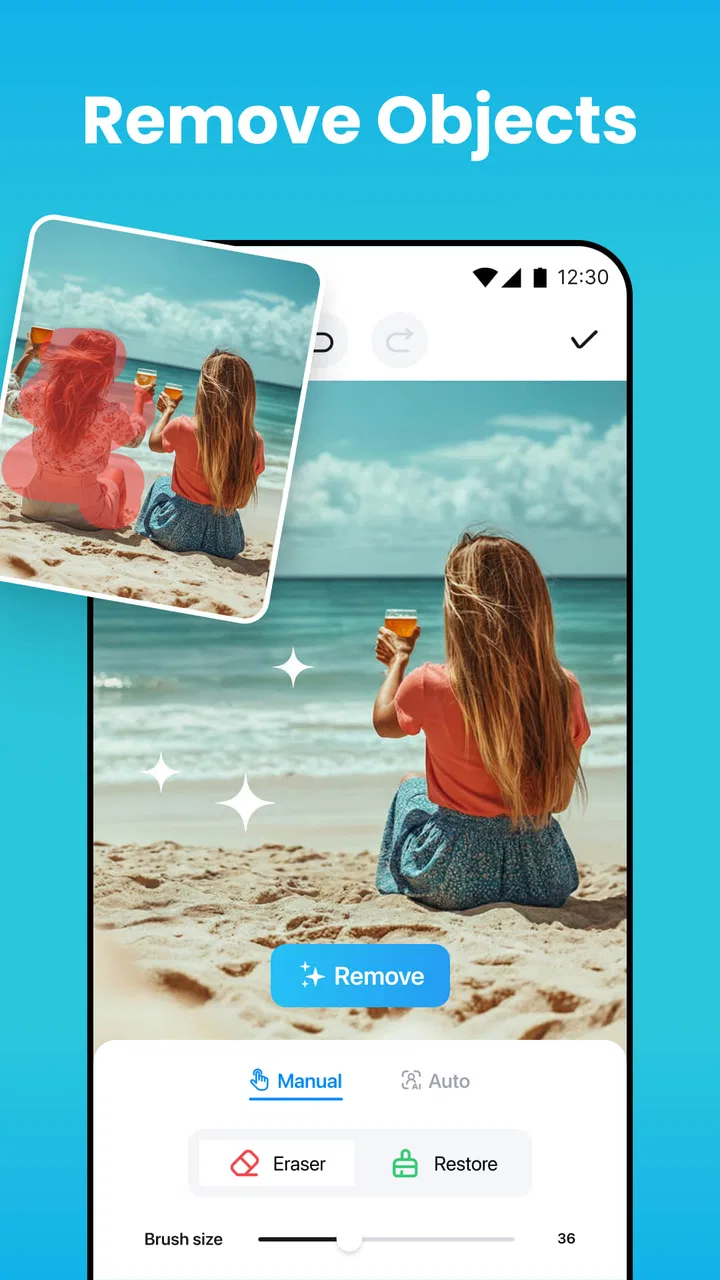
The object-removal tool is useful for small distractions rather than major reconstruction. I would use it to clear a stray item from a tabletop, remove a passerby from an otherwise quiet scene, or tidy a background before sharing a photo. The important trade-off is the size and complexity of the area being repaired. A compact object against a plain surface gives the editor a much easier job than a large subject crossing detailed lines, text, or repeated patterns.
One technique makes a noticeable difference: remove complicated distractions in several modest passes instead of painting over the entire area at once. A broad selection can cause the surrounding texture to look smeared, while smaller corrections let the app rebuild the scene more naturally. This is a simple workflow change, but it is one of the more valuable lessons for anyone expecting an automatic eraser to behave like a careful human retoucher.
I also like the fact that object erasing has a different role from cropping. Cropping solves a composition problem by sacrificing part of the frame. Erasing can preserve the original framing when the unwanted detail is near the edge or when the subject needs to remain centered. That makes BgMaster™ more useful than a basic crop-and-filter app for photos where the composition is already good.
Retouching without making a portrait look artificial
The retouch feature is best approached with restraint. In my experience, the most convincing result comes from correcting one or two visible distractions rather than trying to smooth every texture. A portrait can quickly lose its natural character when skin becomes too uniform or facial details are softened beyond recognition. I prefer using retouching as a cleanup step: reduce the prominence of a temporary blemish, tidy a small mark, and then stop.
This is also where checking the original image becomes important. A before-and-after comparison helps me notice when an adjustment has gone too far. Without that check, it is easy to mistake a stronger effect for a better one. The app is convenient because it puts this kind of correction within reach on a phone, but convenience should not replace judgment.
For profile photos, family snapshots, and informal portraits, subtle editing is usually enough. For a professional headshot or a carefully controlled beauty image, I would want more precise control over texture, tone, and local adjustments than a quick mobile editor is designed to provide. BgMaster™ can prepare an image efficiently, but I would not choose it as my only tool for a demanding retouching project.
One-tap enhancement: useful starting point, not a final style
The one-tap enhance option is appealing when a photo looks dull and I do not want to adjust it manually. It can serve as a starting point for a quick improvement, particularly with casual images that need a little more presence before sharing. The advantage is speed: I can test an automatic treatment without spending time learning a full set of exposure and color controls.
The limitation is that an automatic enhancement cannot know what I intended. A darker mood, muted colors, or deliberately soft lighting may be part of the photograph rather than a flaw. I would therefore compare the enhanced result with the original instead of accepting the first version automatically. If the image becomes too bright, too sharp, or less natural, the better choice is to keep the original or use the enhancement only as a reference for what needs adjusting.
This makes the feature more valuable as a decision aid than as a magic finishing button. It lets me see whether the photo benefits from a stronger treatment, but I still need to decide whether the result suits the subject. Landscapes, food photos, indoor snapshots, and portraits can all react differently to the same automatic improvement.
A realistic workflow for a busy day
Imagine I have taken a quick photograph of a handmade item on a kitchen table. The item looks clear, but a charger, a packet, and part of the sink are visible behind it. I would begin by removing the background if I need a clean product-style image. If I want to keep the original setting, I would instead use the object eraser on the most distracting items and leave the rest of the scene intact.
After that, I might use a light enhancement if the indoor lighting made the item look flat. I would inspect the edges of the object, especially around handles or narrow parts, and then check the image at normal viewing size rather than only zoomed in. This workflow is faster than rebuilding the photograph in a desktop editor, but it also shows where the app’s limits matter: if the table pattern is complex or the object has fine transparent details, I would expect to spend more time correcting the automatic result.
A similar process works for a travel photo. Instead of cropping away a landmark to remove a stranger, I can try the eraser while preserving the original composition. If the repair leaves an obvious repeated texture, I would stop rather than repeatedly painting over it. That is an important boundary: the app can make a good image cleaner, but it does not guarantee convincing reconstruction in every crowded scene.
How it compares with the usual alternatives
Compared with a basic gallery editor, BgMaster™ offers more targeted help for cutouts, unwanted objects, and quick retouching. A standard phone editor may handle cropping, rotation, and simple filters well, but it often does not make background separation the central task. If that is the specific problem I am trying to solve, this app is more focused and usually easier to approach.
Compared with a full professional editor, the trade-off goes the other way. A desktop-style tool is better when I need layered compositions, exact selections, repeatable adjustments, or detailed control over the final output. It may also be preferable for a project where every edge and color needs deliberate manual attention. BgMaster™ wins when speed and simplicity matter more than a deep editing workspace.
It also sits between manual editing and fully automatic services. Automatic tools save time, but they can produce results that need inspection. Manual tools offer control, but they demand patience and skill. The app’s strongest position is as a middle ground: let automation handle the first pass, then use careful judgment to decide whether that pass is good enough.
What may frustrate careful users
The largest weakness is not the idea of automatic editing; it is the unavoidable uncertainty of automatic boundaries and repairs. A clean background and a clearly separated subject are friendly conditions. Fine hair, overlapping objects, reflective surfaces, and detailed backgrounds are much less predictable. Anyone choosing this app should be comfortable reviewing the result instead of assuming that “automatic” means flawless.
There is also a quality-versus-speed decision in the enhancement and retouch tools. Fast processing is convenient, but a fast correction can look generic when the original image needs a specific treatment. I would rather use the app for a targeted improvement than apply every available effect simply because it is there.
The optional purchase structure is another point to consider. The app is free to use in its basic form, but some users may encounter paid options priced from $4.99 to $99.99 per item. I would recommend trying the free experience with the kinds of photos I actually edit before committing to anything. That is especially sensible for occasional users who only need an object removed once in a while.
Storage and workflow expectations matter too. BgMaster™ is a mobile editor, so it is most comfortable when I want a quick result on the same device where the photo was taken. If I am managing a large batch of images, maintaining exact consistency across many files, or preparing commercial work that needs a repeatable process, a more specialized editor may save time in the long run.
Who should use it, and who should skip it
I would recommend this app to casual photographers, small online sellers, students preparing visual material, and anyone who regularly finds one annoying object in an otherwise useful picture. It is also a good fit for people who do not want to study complex editing controls before making a simple cutout or cleanup.
It can be particularly helpful for social-media users who need a quick portrait adjustment or a cleaner background without moving to a computer. The Everyone content rating also makes it suitable for a broad household audience, although the quality of the result will still depend on the photograph and on how carefully the edit is checked.
I would skip it as a primary editor if I need advanced compositing, detailed color work, precise professional retouching, or a carefully repeatable production workflow. I would also look elsewhere if I strongly prefer editing every edge manually. In those cases, the simplicity that makes BgMaster™ approachable may feel like a lack of control.
Practical advice before saving an edited image
My first tip is to keep the original photograph untouched. Make a copy or work from an imported version so that an ambitious erasing or retouching attempt does not replace the source image. This is basic advice, but it becomes especially useful when an automatic result looks convincing at first and less convincing after a later review.
My second tip is to inspect edits at two scales. Zoom in to check outlines, hair, small objects, and repaired textures. Then zoom back out to judge whether the photo still looks natural as a whole. An edit that is technically imperfect may be invisible in a small profile image, while a tiny edge mistake can become distracting in a large product image.
Finally, use the least aggressive correction that solves the problem. Remove the one object that attracts attention instead of rebuilding half the background. Retouch the temporary mark instead of flattening the entire face. Try enhancement as a preview rather than assuming it must be applied. These choices make the app’s automation work with the image instead of overpowering it.
My verdict after weighing convenience against control
BgMaster™ has a clear purpose and generally sensible place in a phone-based photography workflow. Its background removal, object erasing, retouching, and one-tap improvement tools address common problems that people actually face when preparing everyday photos. The strongest reason to use it is not that it replaces every other editor; it is that it can shorten the distance between “this photo is almost usable” and “this is ready to share.”
The app has attracted over one million installs and holds a 4.5 average from around sixty-six thousand ratings, which fits my view that its focused approach appeals to many mobile users. It was released on May 11, 2024, and the current version is 1.2.8. I would treat those figures as signs of broad interest, not as a guarantee that every image will produce a perfect automatic result.
For me, the final judgment is positive with a sensible qualification: BgMaster™ is best when speed, accessibility, and targeted cleanup matter more than total creative control. I would keep it available for quick cutouts, small object removals, and restrained portrait corrections. I would not rely on it alone for demanding commercial work or complex compositions. If that balance matches what you need, this free photography app is worth trying before reaching for a heavier alternative.
FAQs for AI Photo Editor - BgMaster™
01What features does AI Photo Editor - BgMaster™ offer?
AI Photo Editor - BgMaster™ offers a wide range of features including background removal, AI-driven enhancements, filters, and customizable effects. The app also provides tools for retouching portraits, adding text, and applying artistic overlays. Its AI capabilities ensure precise edits, making it ideal for both amateurs and professionals seeking high-quality results.
02Is AI Photo Editor - BgMaster™ easy to use for beginners?
Yes, AI Photo Editor - BgMaster™ is designed with an intuitive interface that caters to both beginners and experienced users. The app includes guided tutorials and tips, making it easy to navigate through its features. Users can quickly learn to apply edits, use AI tools, and enhance photos without any prior experience.
03Does AI Photo Editor - BgMaster™ require an internet connection?
While AI Photo Editor - BgMaster™ can perform basic editing offline, certain AI-driven features and updates may require an internet connection. Access to cloud-based resources and downloading additional content also necessitate being online, ensuring users have the most up-to-date tools and features available.
04Are there any subscription or in-app purchases in AI Photo Editor - BgMaster™?
AI Photo Editor - BgMaster™ offers a free version with basic features. However, to access premium tools and remove ads, users can opt for a subscription. In-app purchases are also available for additional filters and effects, allowing for expanded creativity without any limitations.
05What are the system requirements for AI Photo Editor - BgMaster™?
AI Photo Editor - BgMaster™ is compatible with both Android and iOS devices. Generally, it requires Android version 8.0 or higher, and iOS 12.0 or later. For optimal performance, a device with a recent processor and sufficient RAM is recommended to handle the app's advanced AI features efficiently.
Pros
- Intuitive interface for easy navigation.
- Wide range of editing tools available.
- High-quality AI background removal.
- Supports batch photo processing.
- Regular updates with new features.
Cons
- Some features require in-app purchases.
- Occasional lag on lower-end devices.
- Limited free template selection.
- Ads can be intrusive at times.
- Requires a stable internet connection.

AI Photo Editor - BgMaster™
Gallery